

We’ve all read the advice on crafting a good AI prompt: Define your persona, give it a task, and describe your context and format. In theory, this makes sense. But from personal experience, sometimes writing out the entire prompt takes longer than doing the task myself. 😩
I used to fall into this trap all the time. I’d sit down to work on a task, spend five minutes crafting the perfect prompt on an LLM, and then realise I could have just done the task manually.
My quest to become the perfect prompt engineer became a bottleneck, not a shortcut. If I really wanted to integrate AI into my work, I needed a better way.
Here are two techniques that I’ve found helpful.
Use Text Expanders for High-Speed, Low-Context Tasks
I first learned about text expanders from productivity YouTuber Jeff Su.
What’s a text expander? It’s basically a shortcut that replaces a short snippet with a longer piece of text. It’s perfect for high-speed, low-context tasks: routine work that has a consistent structure and doesn’t require an elaborate setup.
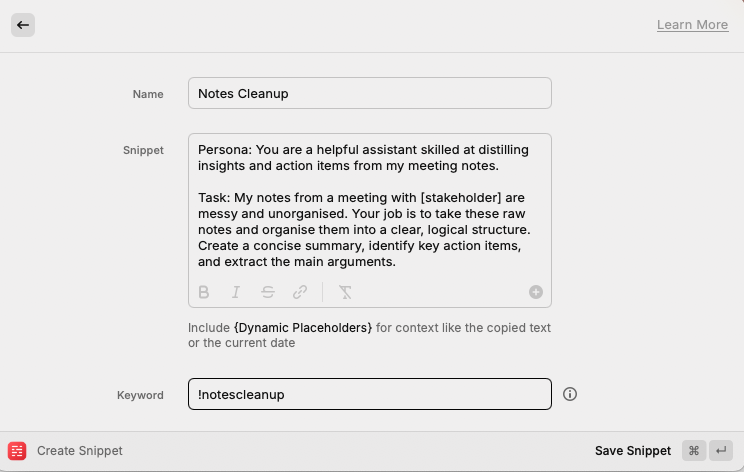
For example, whenever I type “!notescleanup”, it instantly expands into the following detailed, multi-line prompt to help me to clean up and format my raw meeting notes:
Persona: You are a helpful assistant skilled at distilling insights and action items from my meeting notes.

Task: My notes from a meeting with [stakeholder] are messy and unorganised. Your job is to take these raw notes and organise them into a clear, logical structure. Create a concise summary, identify key action items, and extract the main arguments.

Format: Organise the information into logical sections with clear headings using markdown. Create a summary (2-3 sentences) at the top. Identify and list all key decisions made. Extract all action items and assign owners if mentioned. Use bullet points for lists. Bold key terms, names, and deadlines. If something is unclear, mark it as "(unclear)" but do not invent information.

Here are my notes: [Insert Notes Here]
That single !notescleanup snippet saves me from retyping over 100 words every time I want to use it. It helps me format my notes and identify action items before my next meeting even starts. More importantly, it helps me recreate the same high-quality prompt every time I need to use it.
I use similar snippets for other routine tasks:
- !pulsecheck: To get a quick overview of an industry before a meeting
- !simplifyidea: To brainstorm analogies to help me explain a complex technical concept to someone
- !emailtodos: To scan my inbox and generate a prioritised to-do list (useful when I’ve just returned to the office after being on holiday!)
Setting Up Your Text Expander
How do you activate a text expander? If you’re on a Mac, you can use the native Text Replacement feature (Go to Settings → Keyboard → Text Replacements). There are also a number of third-party tools available. I personally use Raycast’s “snippets” feature on Mac, because Raycast comes with a bunch of other useful productivity features as well (more on this in another post).
Here’s an example of my Notes cleanup snippet:
To sum up, a text expander is the fastest way to get the job done for simple, repetitive prompts.
Use Gems for High-Context, Quality Work
Text expanders excel at speed, but some tasks require more nuanced understanding and specific domain knowledge. For these, I turn to using Gems.
Gems are specialised AI tools found in the Gemini chatbot. (The equivalent for ChatGPT is a “Custom GPT”.) They’re specialised versions of AI which you’ve pre-trained with your own rules and context.
Working with an LLM is like hiring a new employee. You need to brief them, give them all the background information, and then share feedback to help them improve. Yet, many people open a blank LLM window whenever they start a new task. This is like firing your employee at the end of every workday, hiring a new one the next day, and then briefing and training them all over again!
In contrast, a Gem is like a specialised consultant who understands your preferences, instructions, and guardrails. They’ve already been pre-briefed, so you don’t have to repeat yourself every time.
I turn to Gems when I need to provide deeper context and detailed background instructions. Here are a few that I use in my own work:
- The Performance Review Gem: I use this to help draft my quarterly and annual performance reviews. I upload my performance review templates, the rubrics I’m evaluated against, my meeting notes, and my project trackers. It then extracts all the information and drafts a self-review that I can edit and submit for my performance evaluations. This whole exercise used to take me several days to do. With a Gem, I can cut it down to just over an hour.
- The Strategy Outline Gem: I use this whenever I need to build a strategic narrative for a client meeting or internal review. I pre-brief it with my preferences (e.g., “Use McKinsey’s SCQA framework to structure the narrative,” or “Suggest concrete analogies to explain complex topics”), type in my unstructured thoughts, and it helps me organise them into a logical, coherent outline.
As you can see, Gems aren’t as flashy as image or video generation tools like Nano Banana or Veo 3, but they might be the most underrated feature on Gemini.
Setting Up Your Gem
Gems are really easy to set up. If you have Gemini, head to the side panel and select Explore Gems. Clicking “New Gem” opens a window where you can input your own instructions and upload any background documents for context.
For example, here is a Writing Sprint coach Gem that I sometimes use whenever I’m stuck, courtesy of my friend Nat. (Yes, I’m aware that I’m using AI to help me write about AI 😅)
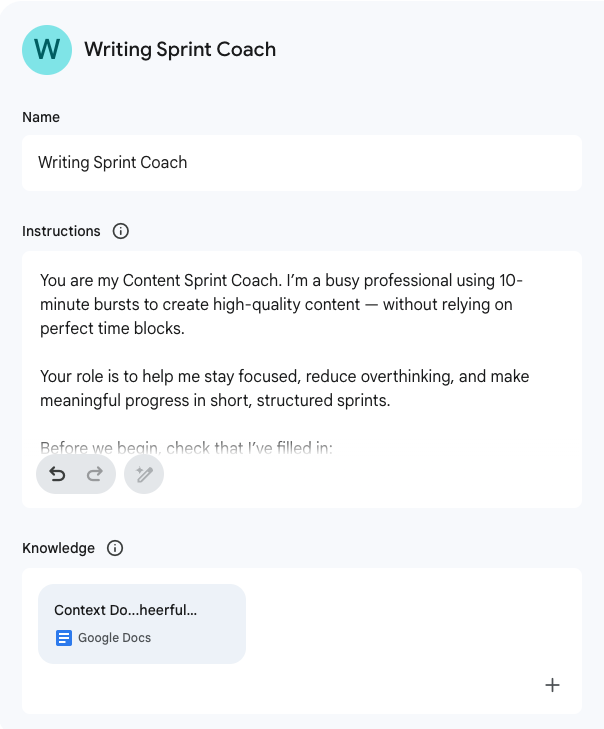
You can see how I’ve included some simple instructions to help the Gem keep me focused on writing. I’ve also uploaded a context document which details my preferences on how I like to structure my articles, details of my audience, and my tone of voice.
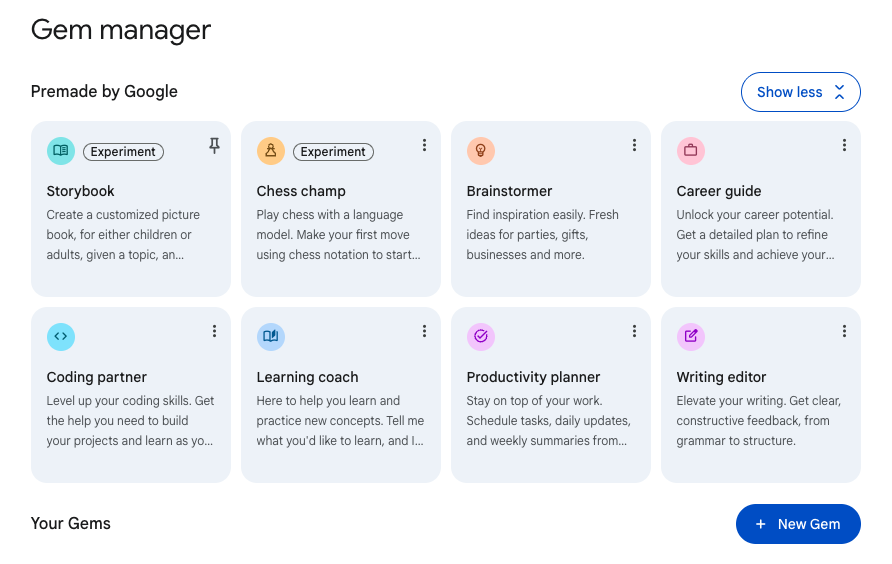
If you don’t want to create a Gem from scratch, you can also use the pre-made gems from Google. Click on the three dots on the top right of a pre-made Gem, click “Make a copy” and you can modify the instructions to create your own.
From Occasional Tool to Daily Partner
I used to treat AI like an occasional writing buddy. I’d use it once in a while, but there was a catch-22: Whenever I wrote prompts that were too simple, the output simply wasn’t good. Whenever I wrote prompts that were comprehensive, they took too long to write.
Now, by using text expanders for speed and Gems for context, these tools have helped me overcome these obstacles. It’s not just about saving five minutes here and there. It’s about training myself to integrate AI into my daily habits, which I believe will become even more essential in the workplace.
I’m definitely not an expert at this (yet!), but I’m hoping that these tools will help.